
Image Styles
Applies to: All
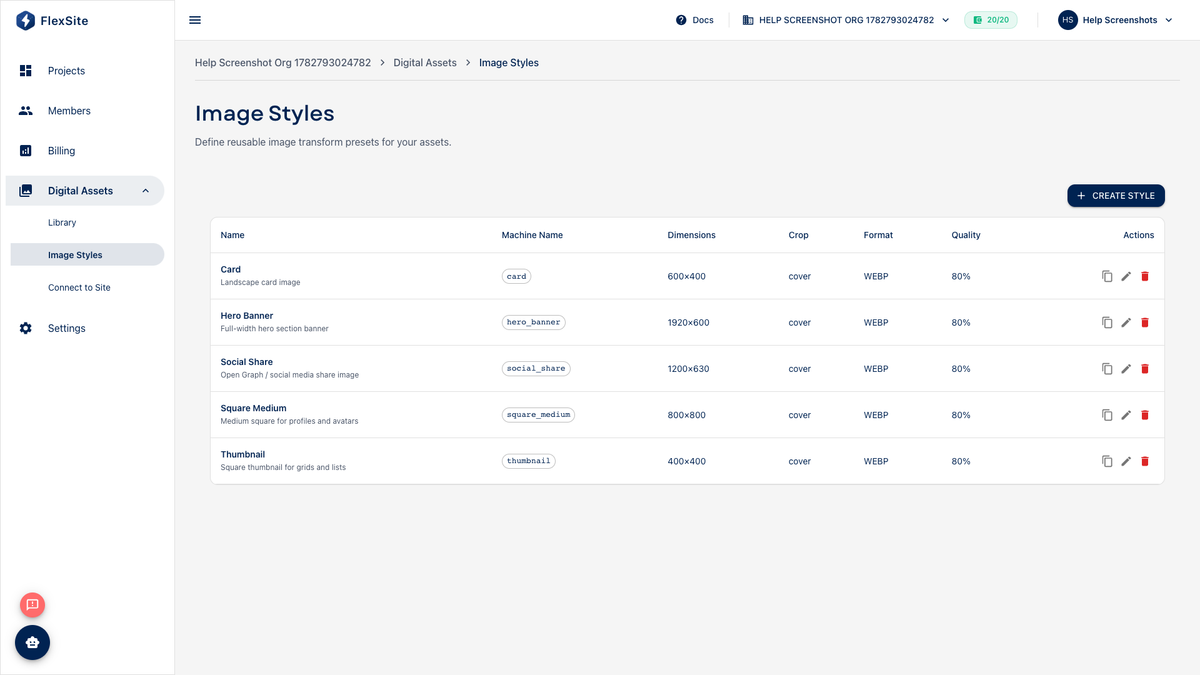
Overview
Image Styles tell FlexSite how to crop and resize photos from your Digital Assets library — for example “hero banner 1600×600” or “square thumbnail.” Editors then pick images in Drupal without manually resizing in Photoshop for every page.
Key concepts
- Image style — a named recipe (scale, crop, convert format) applied automatically when Drupal displays an image.
- Derivative — the generated file after processing (the thumbnail or hero image visitors actually download).
- Org-wide — styles belong to the organization; all connected sites see updates after cache clears.
Who does what
- Marketing / DAM admin — creates styles under Digital Assets → Image Styles.
- Content editor — picks images in Drupal media fields; Drupal applies the correct style name.
Steps — create a style (admin)
- Open Digital Assets → Image Styles.
- Click Add style or New image style.
- Enter a clear label editors will recognize (“Hero banner”, “Team headshot square”). Technical machine names are for developers — use simple words when possible.
- Add effects: Scale to max width, Crop to fixed ratio, etc.
- Save and preview with a sample photo from the library.
Steps — editors use styles in Drupal
- Complete Connect to Site so Drupal can reach the DAM.
- Open Quick Login → edit a page with an image field.
- Choose a DAM image and select the style (hero vs thumbnail) in the field settings.
- Save the page and view the public site.
After you change a style
Connected sites may need a Drupal cache clear (Quick Login → Configuration → Performance, or ask your admin). Large style changes on high-traffic sites can increase image processing — monitor Usage.
Tips for non-technical teams
- Create fewer, well-named styles rather than dozens of similar crops.
- Keep hero images under recommended dimensions in the style description so photographers know what to upload.