
DAM Integration
Applies to: Codeless
Overview
Digital Assets (DAM) is your organization’s shared photo and file library. Connecting it to Codeless lets every editor pick the same approved logo and photography inside Drupal — upload once, use on many pages and sites.
Key concepts
- Library — upload and organize files under Digital Assets → Library.
- Image Styles — crop/resize recipes (hero, thumbnail) applied automatically.
- Connect to Site — links one environment to the library with secure credentials.
Why bother?
Without DAM, each site re-uploads the same headshots and PDFs. With DAM, brand teams control assets centrally and editors stay consistent.
Steps — full workflow
- Upload assets to Digital Assets → Library (org admin or marketing lead).
- Create Image Styles editors will recognize by name.
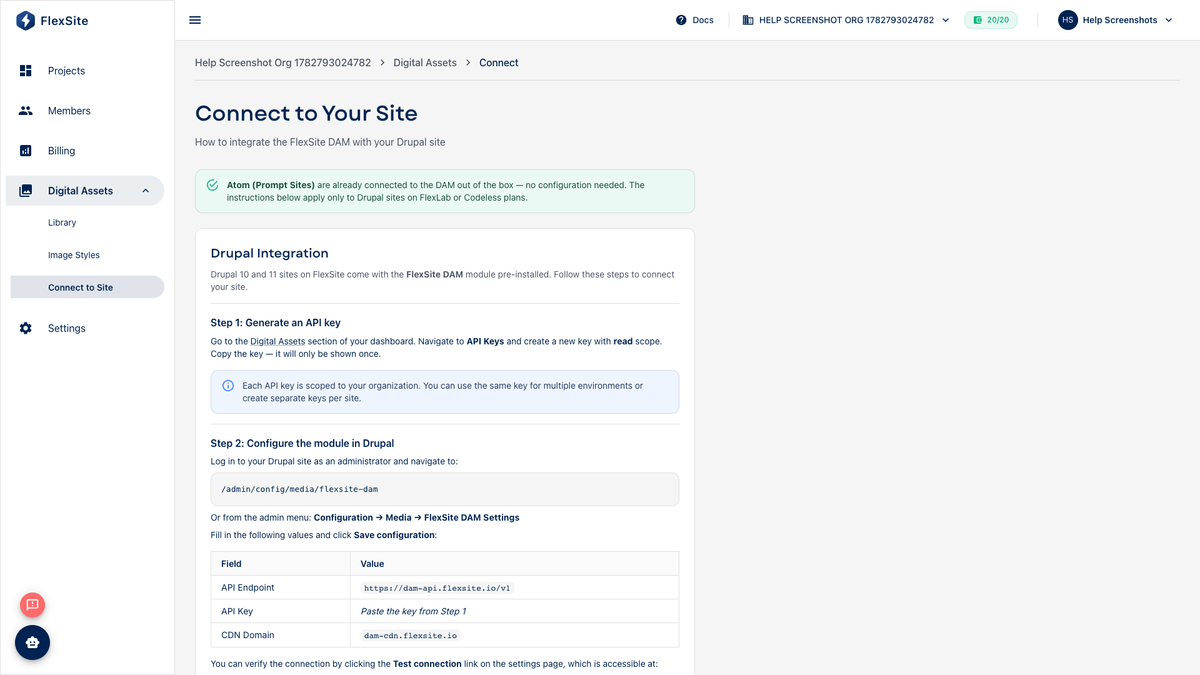
- Open Digital Assets → Connect to Site.
- Select this project and environment (connect staging first if you test there).
- Copy connection details into Drupal via Quick Login → FlexSite DAM settings (see Connect DAM to Your Site for detail).
- Clear caches if images do not appear immediately.
- Edit a Drupal page, insert DAM media, confirm on the public site.
Project shortcut
From the project sidebar, Digital Assets may open the library filtered to this project’s connect flow.
Rotate API keys on Profile → Tokens if a contractor leaves or keys were emailed insecurely.