
Connect DAM to Your Site
Applies to: All
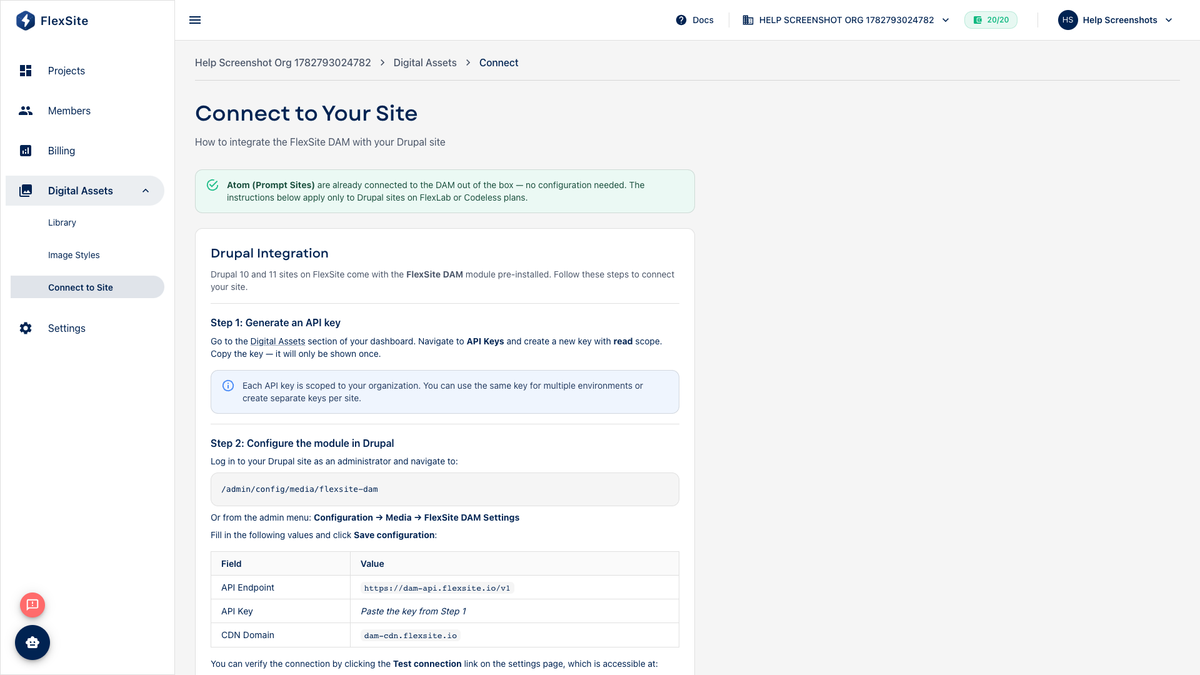
Overview
Connect to Site links your organization’s Digital Assets library to a specific Codeless website so editors pick shared images inside Drupal — one logo upload serves every connected site.
Key concepts
- DAM — Digital Asset Management; the shared Library under Digital Assets.
- Connection — secure credentials FlexSite generates so Drupal can read (not overwrite) your org library.
- Environment — connect each environment (staging vs production) that should use the library.
Who does what
| Role | Task |
|---|---|
| Org admin / lead editor | Upload assets, create Image Styles, run Connect to Site |
| Content editor | Use media fields in Drupal after connection is live |
| Developer (optional) | Verify Drupal module settings if your agency installed custom fields |
Prerequisites
- Assets uploaded to Digital Assets → Library.
- Codeless environment ready.
- Permission to connect DAM to the target project.
Steps — connect (dashboard)
- Open Digital Assets → Connect to Site.
- Select Project and Environment (connect staging before production if you test there first).
- Click Generate connection or Connect.
- Keep this browser tab open — you will copy values into Drupal in the next section.
Steps — enable in Drupal (with Quick Login)
- Open Quick Login for the same environment.
- Go to Configuration → Web services → FlexSite DAM (exact menu may vary slightly by Drupal version).
- Paste organization ID, API endpoint, and API key from the connect page.
- Save configuration.
- Edit a test page, insert a DAM image, and confirm it displays on the public site.
If your team does not see the FlexSite DAM menu, ask an admin to confirm the connection module is enabled.
API keys
Long-lived keys are managed under Profile → Tokens with DAM scopes. Rotate keys if someone leaves the team or a key was shared too broadly.
Repeat connection for each environment that needs the library (staging and production separately).